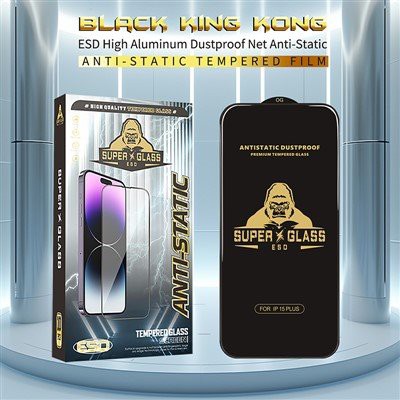
The iPad is a popular tablet computer, offering users an excellent visual experience with its high-definition display. However, the screen is susceptible to damage from scratches, fingerprints, and accidental bumps during daily use, making a high-quality screen protector essential. This article will detail how to select, install, and maintain an iPad screen protector to help users extend the lifespan of their device's screen.
1. Choosing the Right Screen Protector
When choosing an iPad screen protector, consider its material, functionality, and compatibility. Common types of screen protectors include:
Tempered Glass
Tempered glass offers a high hardness rating (typically 9H), effectively resisting scratches from sharp objects and providing a tactile feel similar to the original screen. It is also drop-resistant, and even if it breaks, it will not produce sharp fragments, providing increased safety.
PET Plastic Film
PET film is softer and less expensive, but offers less abrasion resistance and generally only protects against minor scratches. It is suitable for users on a budget or who don't require a high-quality screen.
TPU Soft Film
TPU film has a certain degree of elasticity and can automatically repair minor scratches. It also has good fingerprint resistance, but it may yellow or wear out after long-term use.
Privacy Screen Protector
Privacy screen protectors use optical technology to limit viewing angles, making them suitable for public use. However, they may reduce screen brightness and color quality.
When purchasing, ensure the screen protector is the exact size that matches your iPad model to avoid loose fit or reduced touch sensitivity.
2. Screen Protector Installation
Proper installation can prevent problems like bubbles and white edges, ensuring a smooth, even fit. The following are detailed steps:
Cleaning the Screen
Gently wipe the iPad screen with a soft, lint-free cloth (such as an eyeglass cleaning cloth) to remove dust and grease. If the screen is dirty, spray a small amount of screen cleaner (avoid spraying directly on the screen) and then wipe it clean with a cloth.
Preparing the Environment
Select a draft-free, dust-free indoor environment. Avoid operating outdoors or in dusty areas. Wash your hands first to reduce any residual oil.
Aligning the Protective Film
Align the protective film with the top of the iPad screen (usually starting from the Home button or camera side), ensuring the edges are aligned perfectly. Once this is confirmed, slowly lower the top half of the protective film.
Expel Bubbles
Starting from one end of the protective film, use a hard card (such as a credit card) or the included scratch card to push evenly toward the other end to remove any bubbles. If small bubbles remain, gently press the edges with your finger to dissipate them.
Checking the Edge Fit
Ensure there are no warping or white edges around the protective film. Use the scratch card to readjust as necessary.
3. Daily Care for the Screen Protector
Regular Cleaning
Gently wipe the screen with a microfiber cloth. Avoid using alcohol or abrasive cleaners to avoid damaging the protective film's coating.
Avoid High Temperatures
Exposing the protective film to high temperatures for extended periods (such as in a car under direct sunlight) may cause the protective film to deform or the adhesive to fail.
Replace promptly
If the screen protector develops severe scratches, bubbles that cannot be repaired, or a decrease in touch sensitivity, it is recommended to replace it promptly to ensure the best user experience.
4. Conclusion
iPad screen protectors are essential accessories for protecting your device's screen. Proper selection and installation can significantly enhance their protective effectiveness. Tempered glass screen protectors are the preferred choice for many users due to their durability and tactile feel. Careful installation and routine maintenance can extend the lifespan of the screen protector. By managing your screen protector scientifically, users can not only reduce the risk of screen damage but also maintain their iPad's display quality and touch experience.